Translation Service Guide: Map Alignment
Why Aligning Your Map Matters:
To successfully translate your Static Map to a Geospatial Map, it is essential to properly align your Map Image with its real-world location.
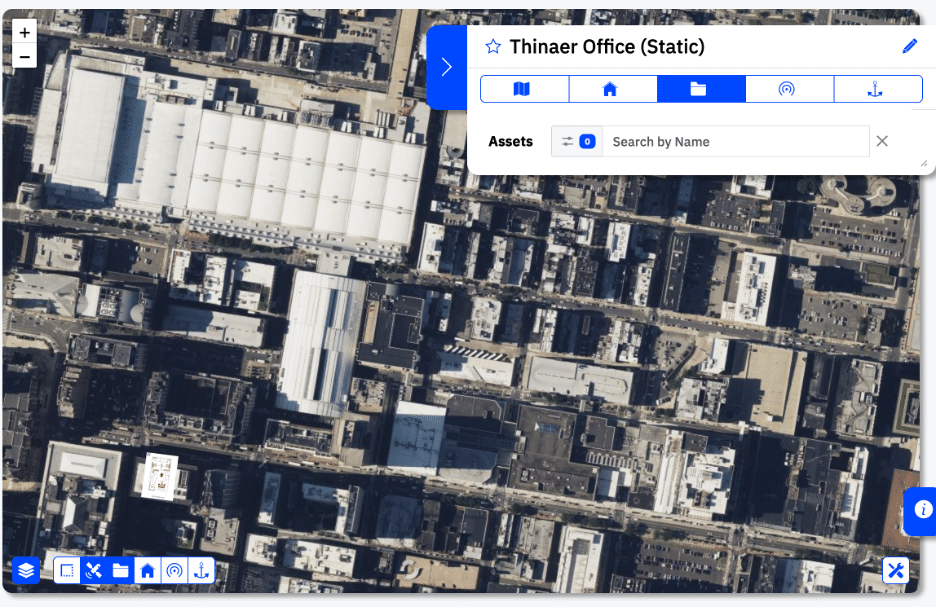
By translating your Map, all associated Map Objects will also be translated to real-world locations. This unlocks exciting Geospatial functionality, such as the Transparency Slider (located in the lower right hand corner of the Map Image), and Satellite View (accessed by clicking the Satellite icon in the lower left hand corner of the Map Image).
Note: Outside of a one-time translation service to go from Static to Geospatial Maps, any future movements of the Map Image overlay will NOT automatically update the locations of associated Map Objects. Therefore, it’s essential to properly align your Map when translating it. If you need to re-align your Map in the future, your Map Objects must be manually adjusted.
How to Properly Align Your Map:
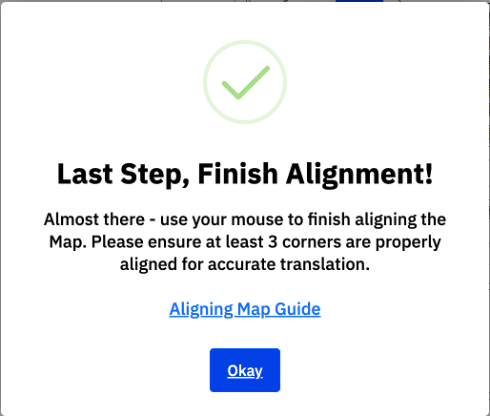
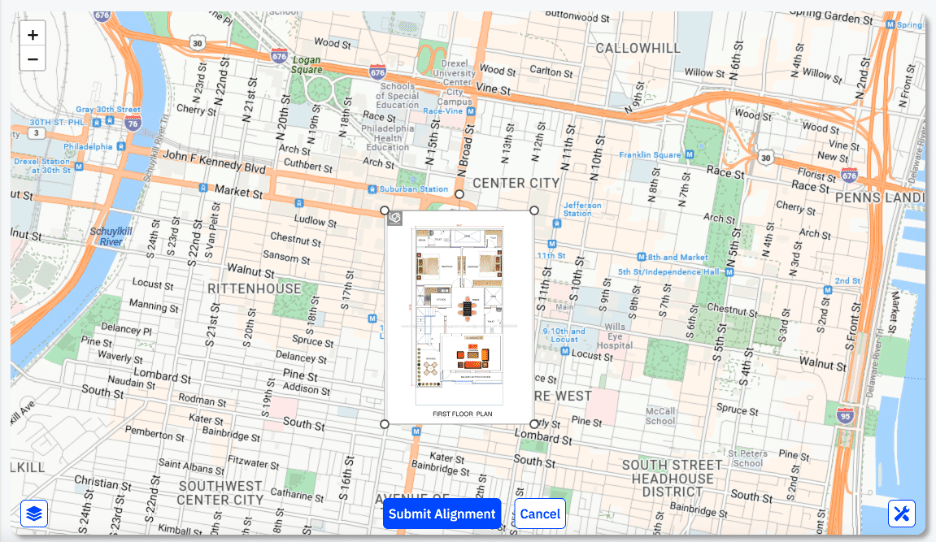
Once you select “Okay” on the “Last Step, Finish Alignment!” screen, you will see your Map image displayed in on a World Map centered on the Location selected.
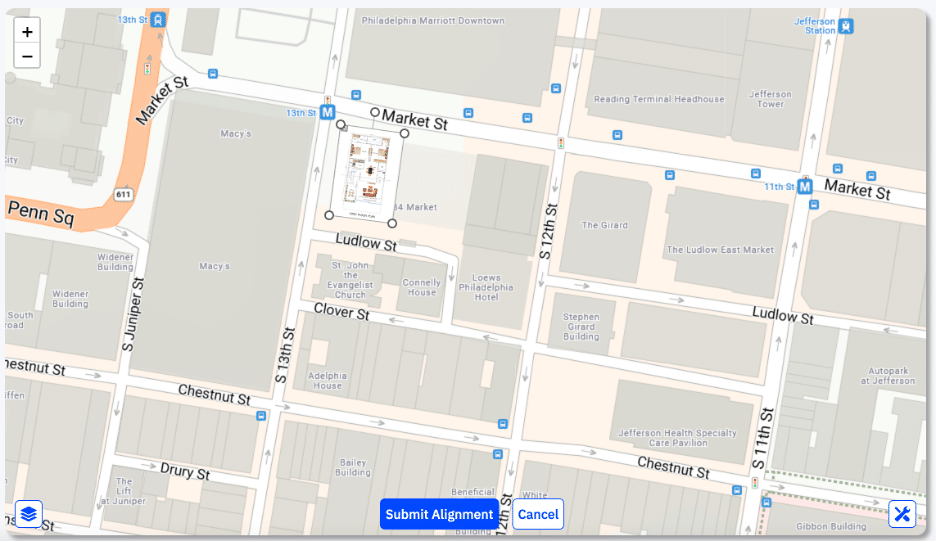
To Align your Map, ensure your Map Image size and orientation matches its real-world counterpart. Note: At least 3 corners of your Map Ensure must be properly aligned for accurate translation of the objects on your Map.
1. Each of the four corners of your Map Image are draggable, and can be used to shrink or expand your Map Image.
2. Additionally, you can rotate the Map Image by clicking and dragging the node extending from the center of the upper quadrant of the Image.
3. You can also Zoom in or out on the World Map using your Mouse or by clicking the +/- buttons in the upper left hand corner to make aligning your Map easier.
Once your Map is positioned in the right location and has been adjusted and rotated to the right size and orientation, click “Submit Alignment” to Save your changes. You can click “Cancel” to exit without saving your changes.
Congratulations! You have successfully translated your Map (visible on the right, with Satellite View equipped). You will now see the World Map centered on your newly created Geospatial Map Image.